
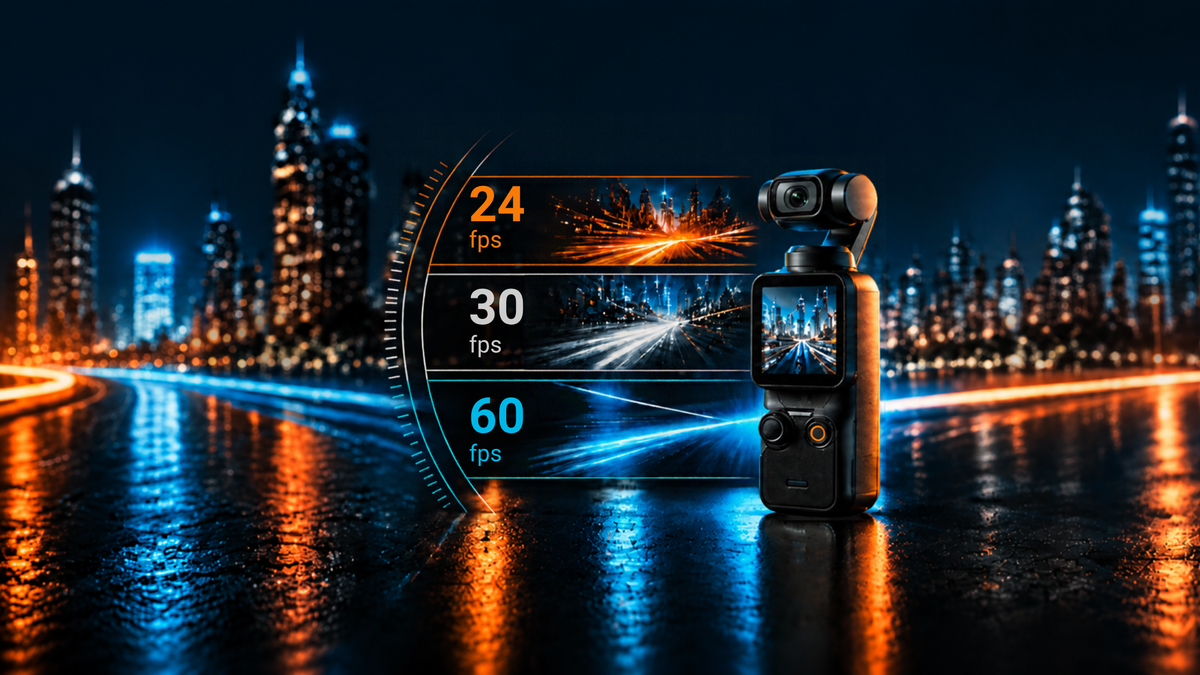
For everyday filming, start with 30fps. Choose 24fps for a project you intend to edit and export at 24fps, and 60fps for smoother real-time motion or footage you plan to slow down.
That’s the short answer. The choice becomes easier once you think about what happens after recording: will the clip play at normal speed, become slow motion, or sit alongside footage from another camera?
The Pocket 3 supports all three rates in standard landscape 4K Video mode. Here’s how to choose between them.
24fps: for a deliberate look, with slower camera movements
24fps is associated with the motion cadence of movies. It can suit a carefully composed travel sequence, a quiet scene in a café, or a short film.
But selecting 24fps won’t automatically make footage cinematic. Lighting, composition, shutter speed, and camera movement still shape the result.
Fast pans are particularly unforgiving. A quick sweep across buildings can look juddery even when the gimbal keeps the camera level. At 24fps, give the viewer time to follow the movement: pan slowly, or record separate compositions rather than sweeping across everything.
Choose 24fps when you want that cadence and will finish the project at 24fps. If you already edit at 30fps, switching just a few normal-speed clips to 24fps introduces an unnecessary frame-rate conversion.
30fps: a practical starting point for everyday videos
For family recordings, talking-to-camera clips, and travel videos with normal-speed playback, 30fps is a straightforward choice.
It captures motion more frequently than 24fps without committing you to a 60fps workflow. If you don’t have a particular look or slow-motion plan in mind, try 4K/30fps and concentrate on framing and movement.
It is also a sensible choice for a project combining Pocket footage with phone video recorded at 30fps. Check the phone’s actual recording settings first.
30fps isn’t a requirement for social media. The useful habit is to choose a project frame rate and export consistently, rather than switching settings because a clip is destined for Instagram or YouTube.
60fps: for motion, or for slowing a moment down
60fps has two different uses.
For smoother normal-speed playback, record at 60fps and edit and export at 60fps. This can suit a lively street scene or someone moving quickly through the frame. The viewer’s device and playback conditions also affect how that motion appears.
For slow motion, record at 60fps, then slow the clip in an editor with a lower-frame-rate timeline:
| Recorded footage | Editing timeline | Playback speed using every captured frame |
| 60fps | 30fps | 50% speed |
| 60fps | 24fps | 40% speed |
A two-second 60fps recording becomes four seconds at 50% speed. Walking through a doorway, pouring coffee, or turning toward a view can work well as short slowed-down inserts.
Simply dropping a 60fps clip into a 30fps project does not necessarily slow it down. Many editors keep normal speed and discard frames. Set the clip speed or use the editor’s interpret/conform function deliberately. Percentages assume matching nominal frame-rate families.
Pocket 3’s standard 60fps Video recording is also different from its dedicated Slow Motion mode. You can use standard 60fps footage at normal speed or slow it afterward; dedicated Slow Motion mode offers higher capture rates, including 4K/120fps.
Why 60fps isn’t the best choice in every situation
Higher frame rates reduce the longest exposure available for each frame.
At 30fps, a frame interval lasts about 1/30 second. At 60fps, it lasts about 1/60 second. The camera cannot give each of those 60 frames the same long exposure it could use at 30fps.
In a dim restaurant or on an evening walk, 60fps can therefore require a higher ISO or produce a darker result. Moving to 24 or 30fps gives you more exposure flexibility, though longer exposures can blur moving subjects.
This does not mean changing frame rate always changes brightness: if shutter speed stays the same, exposure per frame may stay the same too.
If slow motion isn’t needed, try 30fps before pushing 60fps in poor light.
Shutter speed matters too
Frame rate sets how often the camera records an image. Shutter speed sets how long each image is exposed, affecting brightness and motion blur.
A common starting point for conventional motion blur is approximately:
| Frame rate | Shutter-speed starting point |
|---|---|
| 24fps | Around 1/50 second |
| 30fps | 1/60 second |
| 60fps | 1/120 second |
These are creative starting points, not mandatory settings. Automatic exposure is fine while learning.
Pocket 3 has a fixed f/2 aperture. If you manually hold a slow shutter in bright daylight, you may need an ND filter to avoid overexposure. If you leave exposure automatic, the camera may use a faster shutter and produce crisper, less blurred movement.
Indoors, test for flicker before the main take
Artificial lights can produce pulsing or horizontal bands. Choosing a frame rate alone does not guarantee a fix; shutter speed and the light’s electronics matter.
Under typical 60Hz lighting in the United States, 1/60 or 1/120 second are useful shutter speeds to test. In 50Hz regions, test 1/50 or 1/100; 25 or 50fps may also make more sense for your project.
Some LEDs and dimmers behave differently. Record a short clip under the actual lights and review it before filming the whole scene.
What should you use on your next outing?
For a simple travel video, set your main footage to 4K/30fps. Switch to 60fps for selected daylight clips you intend to slow to 50% in a 30fps edit.
If you prefer a 24fps finish, use 24fps for your main footage and plan camera movements accordingly. You can slow selected 60fps clips to 40% in that project.
Pick the playback you want first. Then choose the recording rate that gets you there.
Do you usually keep your travel clips at normal speed, or mix in slow motion? Let us know in the comments.
Share:
DJI Osmo Pocket 3 Settings for Beginners: What to Change and What to Leave Alone