
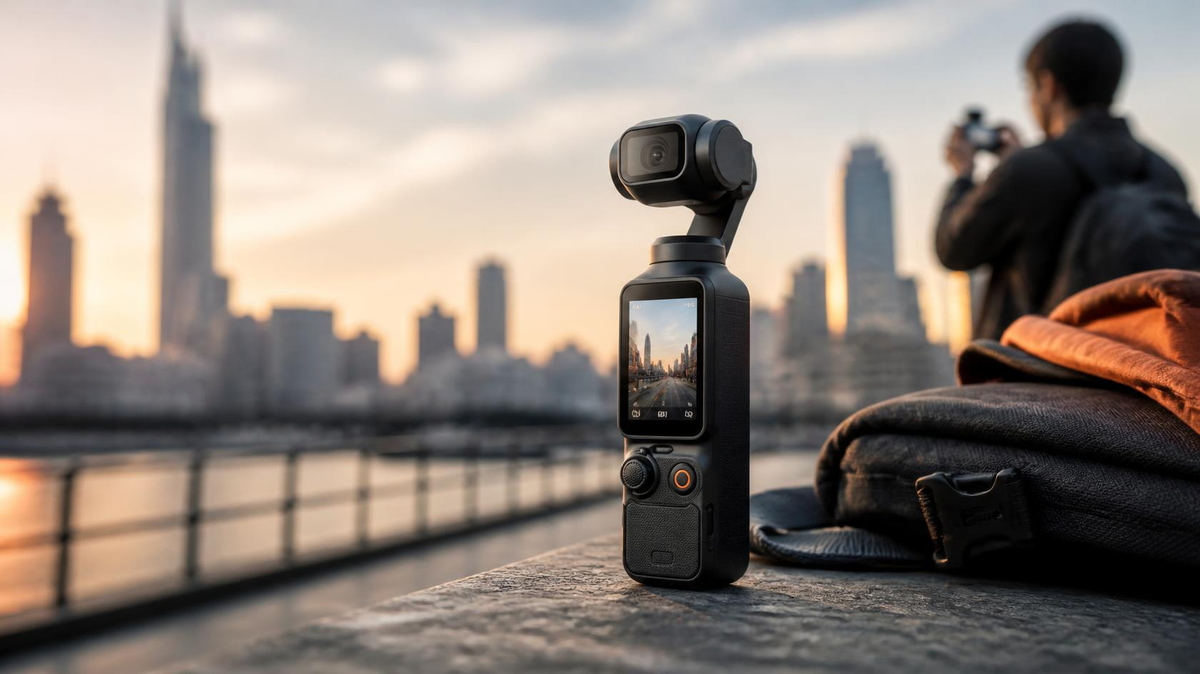
The first time you open the Pocket 3’s settings, it’s tempting to change everything. Start with a simpler goal: footage that looks good without much editing.
For daytime travel and everyday recording, try 4K/30fps, Normal color, automatic exposure, auto white balance, and Follow gimbal mode. These are our suggested starting points, not a list of factory defaults. A previously used camera may have different settings.
Here’s what each choice does—and when to change it.
1. Resolution and frame rate: start with 4K/30fps
For landscape footage, 4K gives you room to crop or reframe when exporting a lower-resolution video. Start at 30fps for ordinary scenes such as a walk through town, lunch with friends, or a room tour.
Choose 60fps when you want smoother motion or plan to slow footage to half speed in a 30fps edit. It isn’t automatically a better setting for everything. Higher frame rates leave less time to gather light per frame and can increase storage and processing demands.
If your phone or computer struggles with 4K, 1080p is a reasonable alternative. A video you can comfortably edit is more useful than one that stays on the memory card.
For vertical recording, check the available resolution separately: Pocket 3’s native 9:16 recording tops out at 3K. Don’t expect the landscape 4K setting to carry over unchanged.
2. Color: use Normal if you don’t want to grade
Choose Normal when you want to trim clips, add music, and share.
D-Log M produces a flatter-looking image intended for further color processing. It gives you options, but also adds work. If you upload it without an appropriate correction, the result can look washed out.
Try D-Log M later, on a short practice clip, once you have an editor and a color-conversion workflow you understand. There’s no need to make every vacation clip a grading exercise.
3. Exposure: leave it automatic until something looks wrong
Automatic exposure is a useful starting point when moving between sun and shade. You can enable Pro mode for access to extra controls while still keeping exposure on Auto; Pro does not mean everything must be manual.
Start with exposure compensation at 0 EV. If a face or bright surface looks too bright, try a small negative adjustment, such as −0.3 EV, and check again. If the subject is too dark, reconsider the lighting or increase compensation carefully.
A negative EV value isn’t a universal “cinematic” setting. It darkens the image, including the subject you may want to see.
Leave shutter speed and ISO on automatic initially. Locking a slow shutter outdoors can cause overexposure without suitable light control. Indoors, if lights flicker or show bands, test settings under that lighting before recording an important take.
4. White balance: Auto for changing light, fixed for consistent shots
Auto white balance is convenient when your surroundings keep changing.
Switch to a fixed white balance when filming several clips in the same lighting, and you notice colors shifting between them. A talking-head video beside a window is a good example: you usually want skin and walls to keep the same color throughout.
Set the value for the scene rather than copying one Kelvin number for every location. Check something neutral, such as a gray card or white surface, then review skin tones. Recheck when you move from daylight into artificial light.
5. Gimbal mode: learn Follow before experimenting
Start with Follow. The camera follows your handle’s pan and tilt movements while keeping roll level, making it a useful place to learn deliberate turns and tilts.
Try Tilt Locked when you want the camera to maintain its tilt angle as you move the handle. FPV also follows roll, allowing the picture to lean with your movement.
These modes control how the camera responds to your hand. Subject tracking is separate: it adjusts framing around a selected subject. Use it when needed rather than assuming it should always be on.
In supported modes, double-tap a subject to start ActiveTrack. Test your movement first; tracking has limits, and it isn’t available in every recording mode.
6. Audio: check the recording before changing more settings
Start with the built-in microphones for nearby speech in a quiet setting. Keep your fingers clear of the microphone openings.
Outdoors, try wind-noise reduction and record a short sample. Listen to the exported clip through headphones: look for gusts, clothing noise, and speech that sounds distant. Noise reduction cannot rescue every windy recording.
If you use a wireless microphone, confirm that it’s connected and that the audio meter responds when you speak. Don’t assume a powered-on transmitter means the camera is receiving it.
Your quick-start card
Setting |
Starting point |
| Recording mode | Standard Video |
| Landscape resolution and frame rate | 4K/30fps |
| Color | Normal |
| Exposure | Auto, 0 EV |
| White balance | Auto |
| Gimbal | Follow |
| Tracking | Enable when the shot needs it |
| Audio | Short test recording before the main take |
Record ten seconds, review it, and change one thing at a time. You’ll learn more from seeing what a setting changes than from copying a long preset list.
Which setting would you like us to explain next: frame rate, color, exposure, white balance, gimbal modes, or audio? Let us know in the comments.
Share:
Do You Need a DJI Pocket If You Already Have a Smartphone?