
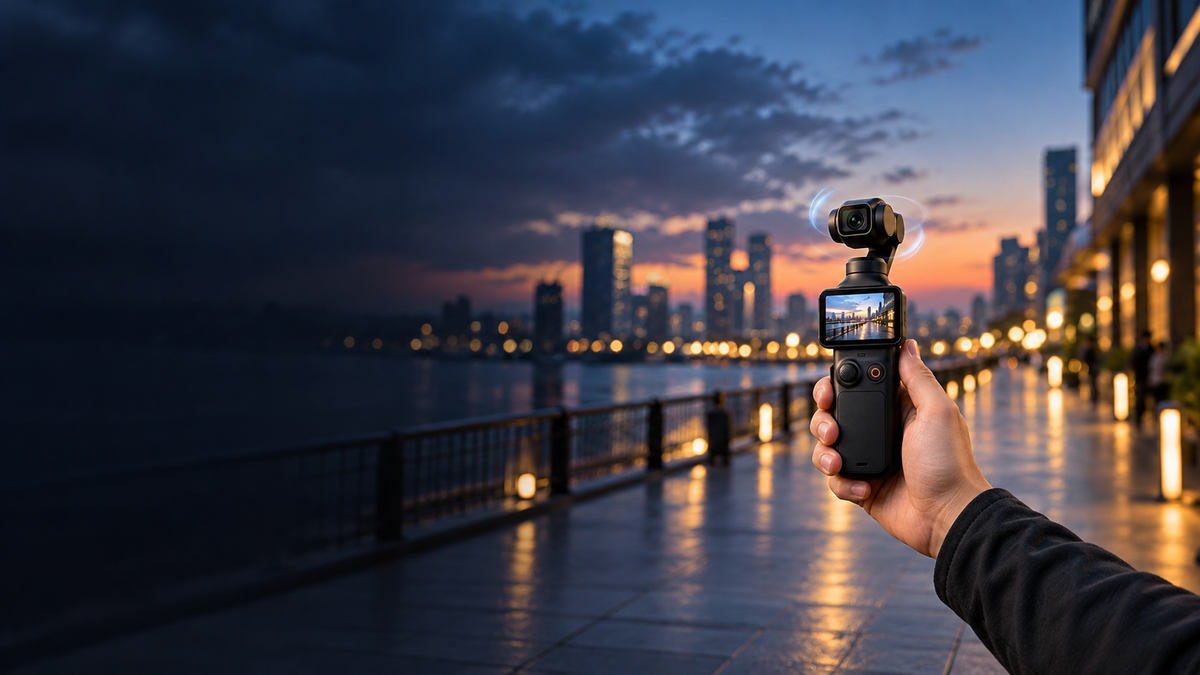
You lower your Pocket 3 to film your dog, but the camera starts pointing toward the ground. You turn a corner, and the view swings around with you. Or the horizon leans when you tilt your wrist.
Before trying to correct every movement with the joystick, check your gimbal mode.
Start with Follow for everyday filming. Try Tilt Locked when you want to maintain an up-and-down viewing angle. Choose FPV when a leaning horizon is part of the shot.
Here's how to make that choice while you're filming.
What the three modes actually change
Gimbal modes control how the camera responds when you rotate the handle. Three movements matter:
- Pan: turning left or right.
- Tilt: pointing up or down.
- Roll: leaning sideways, which makes the horizon slope.
| Mode | Left/right rotation | Up/down rotation | Sideways roll |
| Follow | Follows the handle | Follows the handle | Keeps the horizon level |
| Tilt Locked | Follows the handle | Holds the tilt angle | Keeps the horizon level |
| FPV | Follows the handle | Follows the handle | Follows the handle |
These are rotation controls. Moving the entire camera higher, lower, or sideways still changes your viewpoint.
Follow: for shots where you need to look around
Follow is a sensible starting point for a travel vlog, a room tour, or a walk through a market.
Imagine filming a storefront, then looking up at its sign. You want the camera to turn upward with your hand while keeping the sign from leaning sideways. That's a useful job for Follow.
It also suits a casual selfie video where your framing needs small adjustments as you walk.
The common mistake is moving your wrist without intending to change the composition. If you tip the handle downward while checking the screen, the camera can gradually follow that movement.
Try this: hold the handle comfortably and turn with your upper body for a pan. For an upward reveal, tilt the handle slowly, then pause at the end. Give the shot a clear beginning and finish.
If your footage keeps drifting up or down because of small changes in your grip, try Tilt Locked.
Tilt Locked: for keeping the viewing angle consistent
Tilt Locked is useful when you want to change camera height without also asking the lens to tilt with your wrist.
For example, you might lower the Pocket 3 from waist height toward a dog walking beside you, or raise it for a reveal across a tabletop.
Set the composition first, then make the move. Keeping the tilt angle consistent can make the result feel more deliberate.
But Tilt Locked does not keep a subject in the same place on screen. Lowering the camera changes perspective. A nearby subject may leave the frame even though the lens holds its angle.
It also does not lock your left/right direction. Turn the handle toward another part of the room, and the camera can still pan.
For a walking shot along a straight path, try Tilt Locked if you want fewer accidental upward or downward movements. For a tall building reveal, switch back to Follow so you can deliberately look up.
FPV: for letting the frame lean with the movement
FPV adds sideways rotation to the movements the camera follows.
Try a small wrist roll while filming a doorway. In Follow or Tilt Locked, the doorway should remain upright. In FPV, it can lean with your hand.
That can work for a short transition, a playful point-of-view clip, or an intentional banking movement around an object.
Use it sparingly at first. A slight roll may add energy; repeated rolling throughout a room tour can make the footage uncomfortable to watch.
FPV does not mean stabilization is switched off. It means your sideways rotation becomes part of the camera movement instead of being corrected to keep a level horizon.
Try this: record a brief clip with one gentle roll, then return to level. Watch it back before attempting a larger movement.
How to change gimbal modes on the Pocket 3
From the camera view:
- Swipe down from the top of the touchscreen.
- Tap the gimbal mode icon.
- Select Follow, Tilt Locked, or FPV.
Double-press the 5D joystick to recenter the gimbal before setting up your next shot.
Menu appearance can vary with firmware. Use the mode name to confirm your selection.
Follow mode is different from ActiveTrack
“Follow” can sound as though the camera will automatically follow a person. Here, it refers to the camera following the handle.
ActiveTrack is the separate feature for following a selected subject. In supported Photo and Video modes, double-tap a subject on the touchscreen to select it.
If you're comparing gimbal modes, turn tracking off first so you can see how each mode responds to your hand.
A simple practice test
Stand still and frame a doorway or bookshelf. Record a short clip in each mode, repeating the same three movements:
- Turn the handle slowly left and right.
- Tilt it gently up and down.
- Lean it slightly sideways.
Keep your movements small and watch the recorded frame, rather than just the camera head.
Then try one practical shot: lower the camera from chest height to waist height while filming a nearby object. Compare Follow with Tilt Locked. Notice both the camera angle and how your change in height affects the framing.
If your walking footage still bounces
Changing modes won't remove every footstep. A three-axis gimbal corrects rotation; it doesn't suspend the camera in space when your hand rises and falls.
Try shorter steps, a relaxed grip, and a slightly bent elbow. Record a short section and review it before filming a long take.
For your next outing, leave the camera in Follow until a specific shot gives you a reason to change it. Use Tilt Locked for a consistent tilt angle and FPV for deliberate roll.
Which movement gives you the most trouble: unwanted tilting, a leaning horizon, or bounce while walking? Share your experience in the comments.
Share:
DJI Osmo Pocket 3 White Balance: Auto or Manual?