
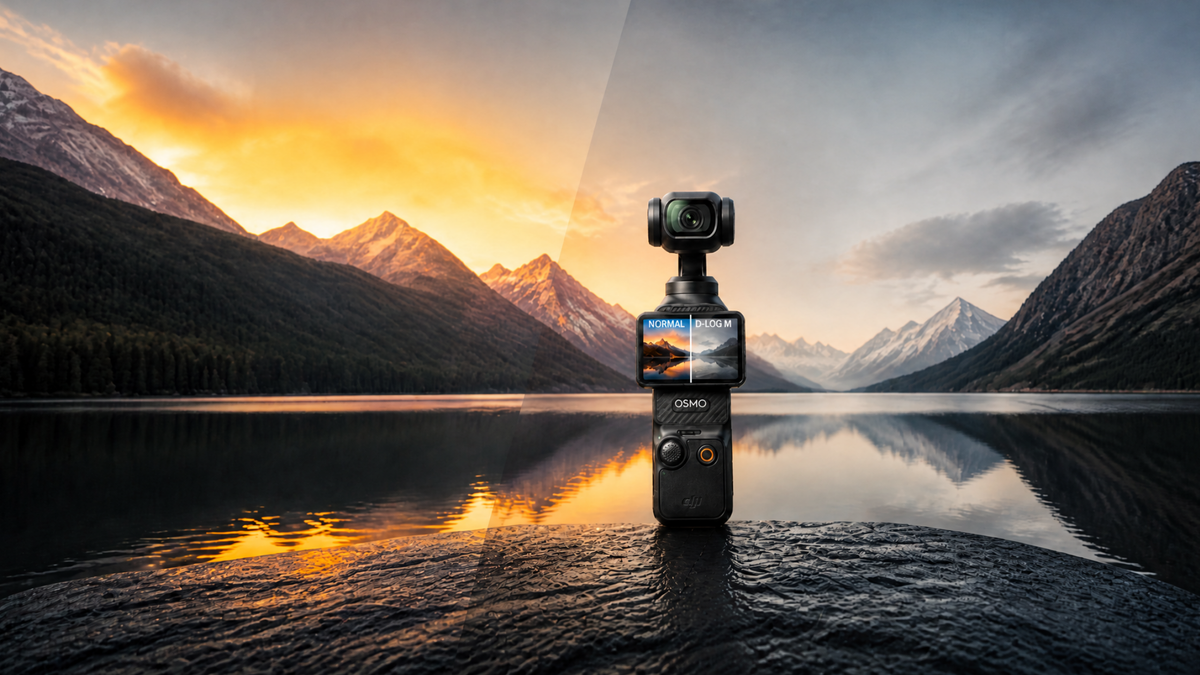
You switch your Pocket 3 to D-Log M, record a clip, and open it on your computer. The colors look muted. The picture seems gray. Did you choose the wrong setting?
Probably not. D-Log M leaves more of the finishing work to you.
Use Normal if you want footage that needs little color work. Choose D-Log M if you’re willing to correct the image before sharing and want more control over its final appearance.
Here’s what that means when you’re actually filming.
What changes when you switch color modes?
In Normal, the camera gives the image a more finished appearance, with contrast and color suited to straightforward viewing. You can still adjust brightness, white balance, and saturation afterward.
D-Log M records a flatter-looking image intended for further processing. DJI describes it as a profile designed to preserve tonal information across bright and dark areas for post-production. The Pocket 3 supports 10-bit D-Log M, which can help keep color transitions smooth when making adjustments.
That does not make it RAW, and it does not guarantee a better video. Blown highlights, missed focus, and noisy underexposure can still spoil a shot.
| Normal | D-Log M | |
| Appearance before editing | More finished contrast and color | Flatter, with muted color |
| Typical color work | Optional adjustments | Conversion or equivalent correction, then adjustments |
| Useful starting point for | Quick edits, family clips, everyday sharing | Projects with deliberate color work |
| Main tradeoff | Less latitude for substantial changes | More steps and more opportunities for mistakes |
When Normal is the sensible choice
Imagine coming home from a weekend trip with fifty clips. You want to trim them, add music, and send the result to friends.
Normal is a good fit. You can spend your editing time choosing moments instead of correcting every shot.
It is also useful for videos you need to turn around quickly: a short product demonstration, a family update, or a social post made on your phone.
Choosing Normal does not mean giving up on quality. Good light, careful exposure, and a well-composed shot still matter. You can also make modest color adjustments without starting from a flat profile.
If you are learning the camera, keep Normal as your everyday setting until you have a reason to change.
When D-Log M earns the extra work
D-Log M is worth trying when you want to shape contrast and color yourself, or match Pocket 3 footage with clips from another camera.
A scene with a bright window and a shaded interior is one reason to explore it. Its tonal flexibility may help during editing, but you still need to expose thoughtfully. It cannot guarantee detail in both the window and the room, and clipped detail cannot simply be restored with a LUT.
Matching cameras takes work too. Two cameras recording log footage will not automatically match. Each needs the correct treatment before you adjust their color and contrast together.
Before taking D-Log M on an important shoot, make sure your editor can handle the files and that you can complete a short test export.
A simple D-Log M editing workflow
For a conventional SDR video, try this sequence:
- Import the original clip. Check for existing automatic color processing before adding anything else.
- Use a conversion designed for Pocket 3 D-Log M. DJI provides a free Osmo Pocket 3 D-Log M to Rec.709 LUT. A LUT is a preset mapping of image values; this one provides a starting conversion for standard viewing.
- Check exposure and white balance. Adjust them in the appropriate place in your editor’s processing chain. A conversion is not a substitute for correcting the individual shot.
- Refine the look. Check skin tones, bright areas, and shadows before adding a creative style.
- Export a short SDR/Rec.709 test. Watch it on the device where you expect people to view it.
An editor with a properly configured color-managed workflow may perform the conversion without that LUT. Use one intentional conversion path: adding a LUT on top of an existing conversion can make the picture excessively contrasty or saturated.
Also check the LUT’s input. DJI’s D-Log and D-Log M are different profiles; a LUT labeled only “DJI log” may not be the right one.
Three mistakes to avoid
Uploading an uncorrected flat clip. A gray-looking file may be behaving exactly as expected. Convert or correct it before judging the finished result.
Copying a fixed exposure offset for every scene. Advice to always overexpose or underexpose ignores what is in front of the camera. Check your subject and important highlights. Brightening an underexposed clip can reveal noise.
Assuming D-Log M is automatically better at night. It does not add light to the sensor. Prioritize exposure, movement, and available lighting; choose the profile according to your editing needs.
Try both before committing
Choose a scene with a face or neutral object, some bright detail, and a shaded area. Record a short Normal clip and then a D-Log M clip.
Keep framing, frame rate, shutter speed, ISO, and white balance consistent where the camera allows. If settings differ, note them: this is a workflow exercise, not a controlled dynamic-range test.
Convert the D-Log M clip, then compare the finished images. How much did you improve the result? How long did it take? Would you want to repeat that work for an entire trip?
For your next outing, use Normal for quick sharing. Try D-Log M on a few selected clips while learning to finish them. You can expand that workflow once the extra control becomes useful.
Do you prefer a quick edit, or do you enjoy working on color? Let us know in the comments.
Share:
DJI Osmo Pocket 3: Should You Shoot in 24, 30, or 60 fps?
How to Fix Videos That Look Too Bright or Too Dark on DJI Osmo Pocket 3